Chaos License Manager
The instructions on this page are for Open iT Core Client version 10.2.580 and later. If you're using earlier versions, please refer to this configuration guide for the appropriate instructions.
Introduction
Open iT supports Chaos usage reporting by polling the license servers at regular intervals to get the current status of its license use and availability.
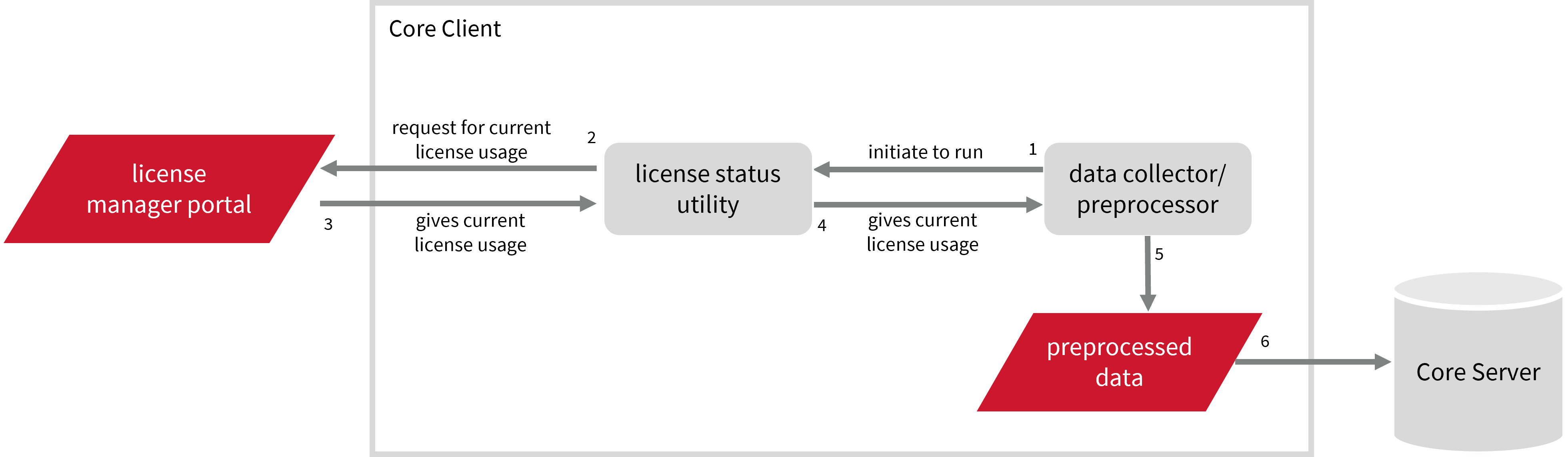
For this collection, the data source is through an API. The data collector/preprocessor initiates the license status utility every hour using a 5-minute sample interval, triggering the data collection process. The license status utility requests the current license usage data from the license manager portal. After the license manager portal provides the requested data, the license status utility passes this information to the data collector/preprocessor. The data collector/preprocessor processes the data, preparing it for transmission. Finally, the preprocessed data is sent to the Core Server every night, according to the client's timezone, for further storage, completing the license usage data collection and processing.
This will produce the following aggregated data types used for historical reporting:
- (49) Host User License Use
- (93) OLAP Raw Hourly
- (94) OLAP User Concurrency
- (95) Usergroup License Use v3.0
- (102) OLAP Total Use
The following sections will guide you in setting up the necessary configuration to collect and send the required data to the server.
Apply the configurations shown in the Open iT client.
Requirements
- An Open iT Client connected to an Open iT Server or a coexistent Open iT setup
- Activated LicenseAnalyzer collection and license poller
- License server administrative rights
- Valid URL with port number of the Chaos API
Configuring Data Collection
These are the required steps to activate collection of usage data.
- Windows
- Unix
-
Go to the Components directory, which is by default in
C:\Program Files\OpeniT\Core\Configuration\Components, and back up thelicpoll.xmlconfiguration file. -
Open a command prompt with Administrator level privileges.
-
Go to the bin directory, which is by default in
C:\Program Files\OpeniT\Core\bin, run the command:Command Syntaxcd <bin_dir>Examplecd C:\Program Files\OpeniT\Core\bin -
Once in the directory, copy the object node
genericlicense-sampleand rename it to your desired name. In this example, we will usegenericlicense-chaos. Run the command:Command Syntaxopenit_confinit -c "licpoll.license-types.genericlicense-sample=>licpoll.license-types.genericlicense-chaos"warningElement names cannot contain parentheses
(or)because they are not valid for XML element names. -
Activate the collection of Chaos data, run the command:
Command Syntaxopenit_confinit -c "licpoll.license-types.genericlicense-chaos.active=true" -
Set the status command, run the command:
Command Syntaxopenit_confinit -c "licpoll.license-types.genericlicense-chaos.status-command=<bin_dir>\genlicutil2.exe"where
<bin_dir>is the path to the bin directory, which is by default inC:\Program Files\OpeniT\Core\bin.Exampleopenit_confinit -c "licpoll.license-types.genericlicense-chaos.status-command=C:\Program Files\OpeniT\Core\bin\genlicutil2.exe" -
Set the arguments to the status command, run the command:
Command Syntaxopenit_confinit -c "licpoll.license-types.genericlicense-chaos.status-command.arguments=chaos --url <chaos_url>"where
<chaos_url>is the base URL of the Chaos License Server.Exampleopenit_confinit -c "licpoll.license-types.genericlicense-chaos.status-command.arguments=chaos --url http://localhost:3000"Alternatively, if you want to use Flattened Output Mode, configure the output structure by running the following command:
Command Syntaxopenit_confinit -c "licpoll.license-types.genericlicense-chaos.status-command.arguments=chaos --url <chaos_url> --flatten"where
<chaos_url>is the base URL of the Chaos License Server.Exampleopenit_confinit -c "licpoll.license-types.genericlicense-chaos.status-command.arguments=chaos --url http://localhost:3000 --flatten" -
Run the following command to update the configuration files:
Command Syntaxopenit_confbuilder --clientMake sure no errors are encountered.
Advanced Configuration
Refer to the Chaos Data Collection Configuration table to learn more about Chaos configuration in licpoll.xml.
| Object Name | Accepted Value | Description |
|---|---|---|
| active | Boolean (true or false) | Setting this to true activates Chaos usage data collection. |
| type | String (i.e., GenericLicense) | The license manager type. |
| interval | Timespan (e.g., P30S, P5M, P1H) | The span of time between each polling round (it is recommended to set a value no less than P1M). |
| offset | Timespan (e.g., P30S, P5M, P1H) | The span of time the aligned poll time decided by interval is shifted. |
| product-name | String (e.g., server;daemon) | This object is defined if a vendor license name other than the default GenericLicense=%hosttype% will be used. |
| license-server | String (e.g., WIN-HOST01) | The Chaos License Server name. |
| status-command | FileName (i.e., ${OpeniT.directories.bin}/genlicutil2.exe) | The binary used to obtain status from the license manager. |
| status-command.arguments | String (e.g., --url http://localhost:3000) | The arguments used for the status command. |
-
Go to the Components directory, which is by default in
/var/opt/openit/etc/Components, and back up thelicpoll.xmlconfiguration file. -
Go to the bin directory, which is by default in
/opt/openit/bin, run the command:Command Syntaxcd <bin_dir>Examplecd /opt/openit/bin -
Once in the directory, copy the object node
genericlicense-sampleand rename it to your desired name. In this example, we will usegenericlicense-chaos. Run the command:Command Syntax./openit_confinit -r /var/opt/openit/ -d /var/opt/openit/etc/ -c "licpoll.license-types.genericlicense-sample=>licpoll.license-types.genericlicense-chaos"warningElement names cannot contain parentheses
(or)because they are not valid for XML element names. -
Activate the collection of Chaos data, run the command:
Command Syntax./openit_confinit -r /var/opt/openit/ -d /var/opt/openit/etc/ -c "licpoll.license-types.genericlicense-chaos.active=true" -
Set the status command, run the command:
Command Syntax./openit_confinit -r /var/opt/openit/ -d /var/opt/openit/etc/ -c "licpoll.license-types.genericlicense-chaos.status-command=<bin_dir>/genlicutil2"where
<bin_dir>is the path to the bin directory, which is by default in/opt/openit/bin.Example./openit_confinit -r /var/opt/openit/ -d /var/opt/openit/etc/ -c "licpoll.license-types.genericlicense-chaos.status-command=/opt/openit/bin/genlicutil2" -
Set the arguments to the status command, run the command:
Command Syntax./openit_confinit -r /var/opt/openit/ -d /var/opt/openit/etc/ -c "licpoll.license-types.genericlicense-chaos.status-command.arguments=chaos --url <chaos_url>"where
<chaos_url>is the base URL of the Chaos License Server.Command Syntax./openit_confinit -r /var/opt/openit/ -d /var/opt/openit/etc/ -c "licpoll.license-types.genericlicense-chaos.status-command.arguments=chaos --url http://localhost:3000"Alternatively, if you want to use Flattened Output Mode, configure the output structure by running the following command:
Command Syntax./openit_confinit -r /var/opt/openit/ -d /var/opt/openit/etc/ -c "licpoll.license-types.genericlicense-chaos.status-command.arguments=chaos --url <chaos_url> --flatten"where
<chaos_url>is the base URL of the Chaos License Server.Command Syntax./openit_confinit -r /var/opt/openit/ -d /var/opt/openit/etc/ -c "licpoll.license-types.genericlicense-chaos.status-command.arguments=chaos --url http://localhost:3000 --flatten" -
Run the following command to update the configuration files:
Command Syntax./openit_confbuilder --clientMake sure no errors are encountered.
Advanced Configuration
Refer to the Chaos Data Collection Configuration table to learn more about Chaos configuration in licpoll.xml.
| Object Name | Accepted Value | Description |
|---|---|---|
| active | Boolean (true or false) | Setting this to true activates Chaos usage data collection. |
| type | String (i.e., GenericLicense) | The license manager type. |
| interval | Timespan (e.g., P30S, P5M, P1H) | The span of time between each polling round (it is recommended to set a value no less than P1M). |
| offset | Timespan (e.g., P30S, P5M, P1H) | The span of time the aligned poll time decided by interval is shifted. |
| product-name | String (e.g., server;daemon) | This object is defined if a vendor license name other than the default GenericLicense=%hosttype% will be used. |
| license-server | String (e.g., host01) | The Chaos License Server name. |
| status-command | FileName (i.e., ${OpeniT.directories.bin}/genlicutil2) | The binary used to obtain status from the license manager. |
| status-command.arguments | String (e.g., chaos --url http://localhost:3000) | The arguments used for the status command. |
Verifying Data Collection
After configuration, you can verify that the data is collected by following these steps:
- Windows
- Unix
-
Open a command prompt with Administrator level privileges.
-
Go to the bin directory, which is by default in
C:\Program Files\OpeniT\Core\bin, run the command:Command Syntaxcd <bin_dir>Examplecd C:\Program Files\OpeniT\Core\bin -
Run the command:
Command Syntaxopenit_licpoll -# 1 -
Verify that the temp directory, which is by default in
C:\ProgramData\OpeniT\Data\temp, contains a LicPoll directory containing.dataandstatus-*.logfiles.
-
Go to the bin directory, which is by default in
/opt/openit/bin, run the command:Command Syntaxcd <bin_dir>Examplecd /opt/openit/bin -
Run the command:
Command Syntax./openit_licpoll -# 1 -
Verify that the temp directory, which is by default in
/var/opt/openit/temp/, contains a LicPoll directory containing.dataandstatus-*.logfiles.
Sample Report
Historical Reports
Utilization Trend
This sample report provides a visual representation of license activity for the selected application. It helps users and administrators quickly understand how licenses are being used, when peak demand occurs, and whether any access issues (such as denials) are happening.
It offers several key benefits:
- Centralized Visibility – provides a clear view of license usage, availability, and denials in a single interface.
- Optimized License Allocation – helps ensure you are not over-purchasing licenses you don't need or under-provisioning.
- Cost Savings – identifies opportunities to downgrade or redistribute licenses, reducing unnecessary expenses.
- Usage Trends & Capacity Planning – shows peak usage patterns, allowing better forecasting for future needs.
- Avoiding Service Disruptions – helps prevent situations where users cannot access software due to reaching the license limit.
- Compliance & Audit Readiness – provides a usage record to ensure compliance with vendor agreements and avoid penalties.
- Performance & Productivity Insights – helps assess whether certain teams or departments are under-utilizing or over-utilizing software.
- Historical and Real-Time Analysis – combines near real-time monitoring with historical trend analysis, enabling both immediate decision-making and long-term planning.

License Efficiency
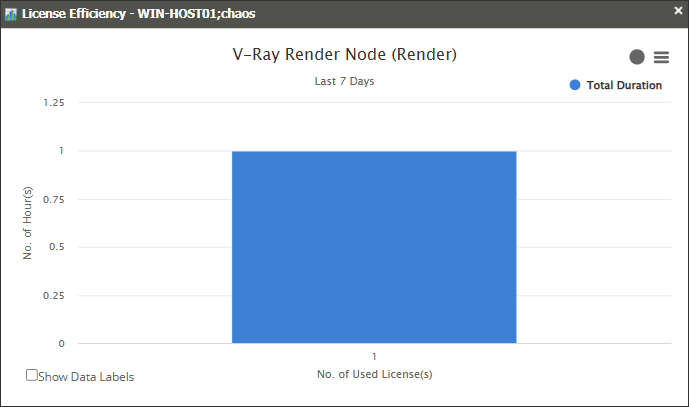
This sample report gives you helpful insights on how much time a software license has been used. It shows whether licenses are being actively used or left idle, giving you a quick way to understand how efficiently your licenses are being managed.
It offers several key benefits:
- License Utilization Tracking – monitors how long licenses are in use during a given period and see if any licenses are not being used so they can be reassigned.
- Optimized License Allocation – helps ensure you are not over-purchasing licenses you don't need or under-provisioning.
- Cost Savings – identifies opportunities to downgrade or redistribute licenses, reducing unnecessary expenses.
- Compliance & Audit Readiness – provides a usage record to ensure compliance with vendor agreements and avoid penalties.
Heatmap
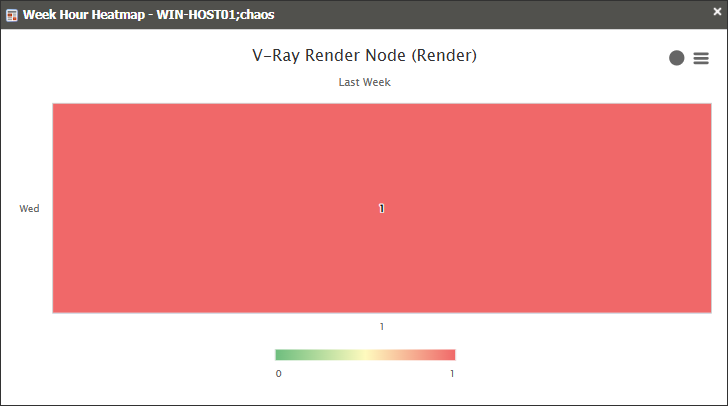
This sample report provides a visual representation of license usage by day of the week and hour of the day for the selected application.
It offers several key benefits:
- Peak Usage Identification – highlights the specific days and hours with the highest demand for licenses.
- Workload Distribution – helps balance activity by identifying underutilized periods where tasks can be scheduled.
- Resource Planning – supports better allocation of licenses by anticipating peak and off-peak usage times.
- User Behavior Insights – reveals patterns in how and when users access software, such as evening or weekday activity.
- Avoiding Bottlenecks – reduces delays by planning critical tasks during low-usage hours.
- Historical & Predictive Trends – combines weekly usage patterns with historical insights to inform long-term planning and decision-making.
Real-time Report
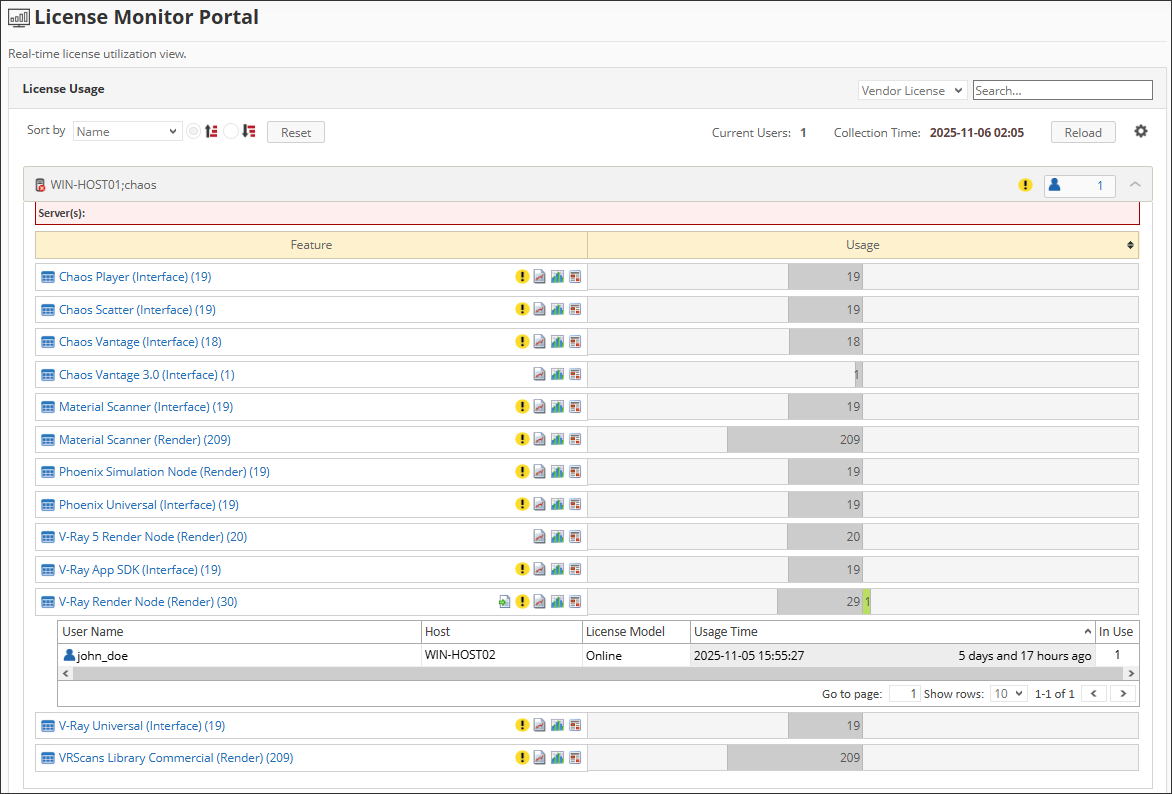
This sample report shows a drilled-down feature view of the online licenses in use and the licenses available.