HTTPS Access - Invalid Certificate
Problem
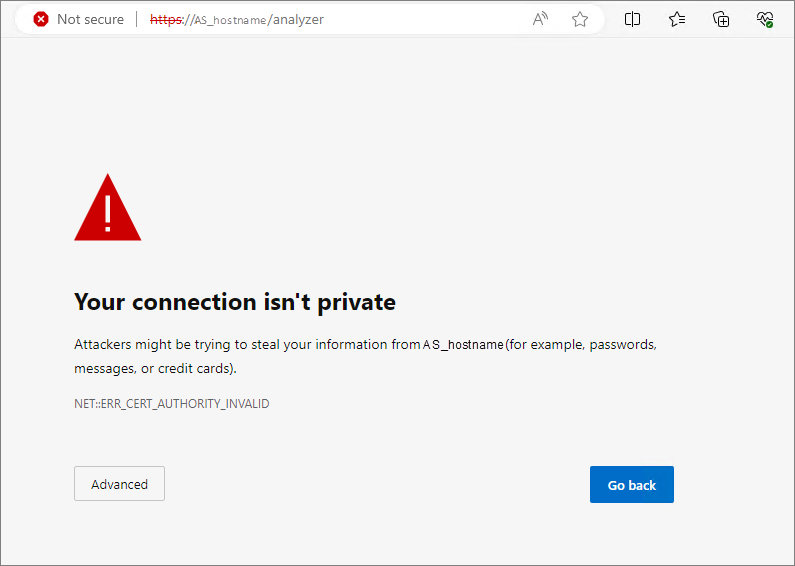
If you are accessing Ingress using HTTPS with an invalid certificate, you will see an error saying Your connection isn't private.
Resolution
Follow these instructions to troubleshoot the issue.
-
Go to the Analysis Server Configuration directory, which is by default in
C:\Program Files\OpeniT\Analysis Server\Configuration. -
Look for the configuration file
ingress.jsonand open it with a text editor. -
Set checkSslValidity to false and save the changes.
ingress.json{
"uri": "https://<ingress_hostname>:443",
"checkSslValidity": false
} -
Use the instructions in the Enabling Anonymous Authentication in IIS section to successfully enable the authentication and restart the Open iT Analysis Server Application Pool.
-
Access the following URI to verify that the Analysis Server web interface successfully connects to Ingress:
URIhttps://<ingress_hostname>:443/analyzerWhere:
-
<ingress_hostname> is the hostname of the machine where Ingress is installed.
Examplehttp://win-host01:8080/analyzer
-